
AI-Powered Attendance Regularization
Here is our approach for creating Ai-Powered Attendance regularization in Zoho People in a few simple steps.
Even a non-technical person can easily set it up in just a few steps.

Approach
1. Enable Attendance Regularization
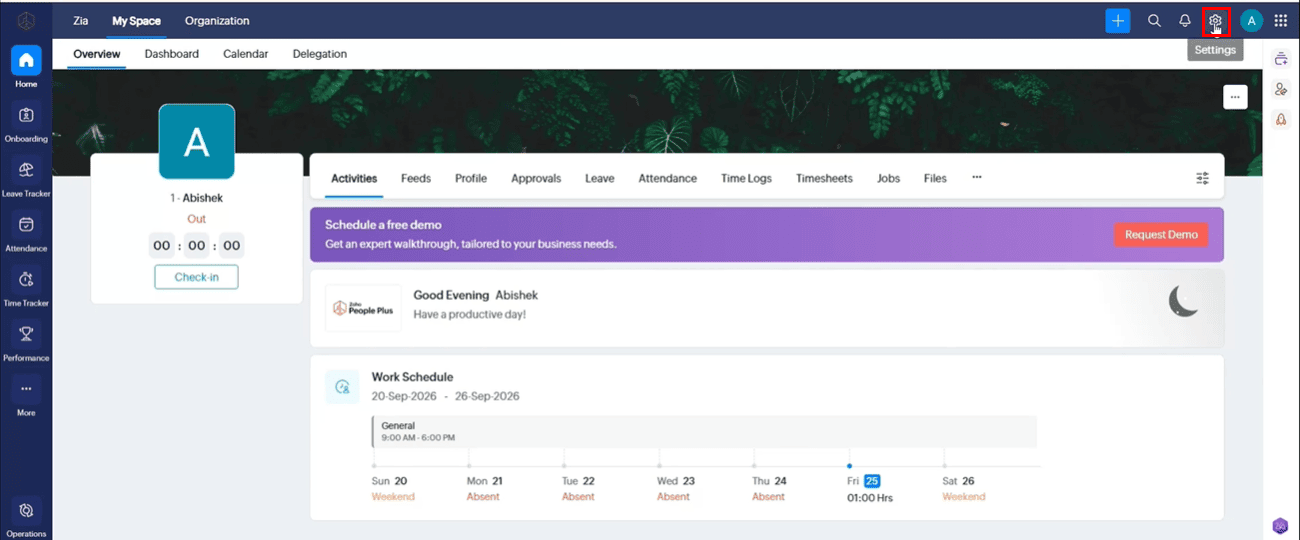
1.1 Go to Settings.
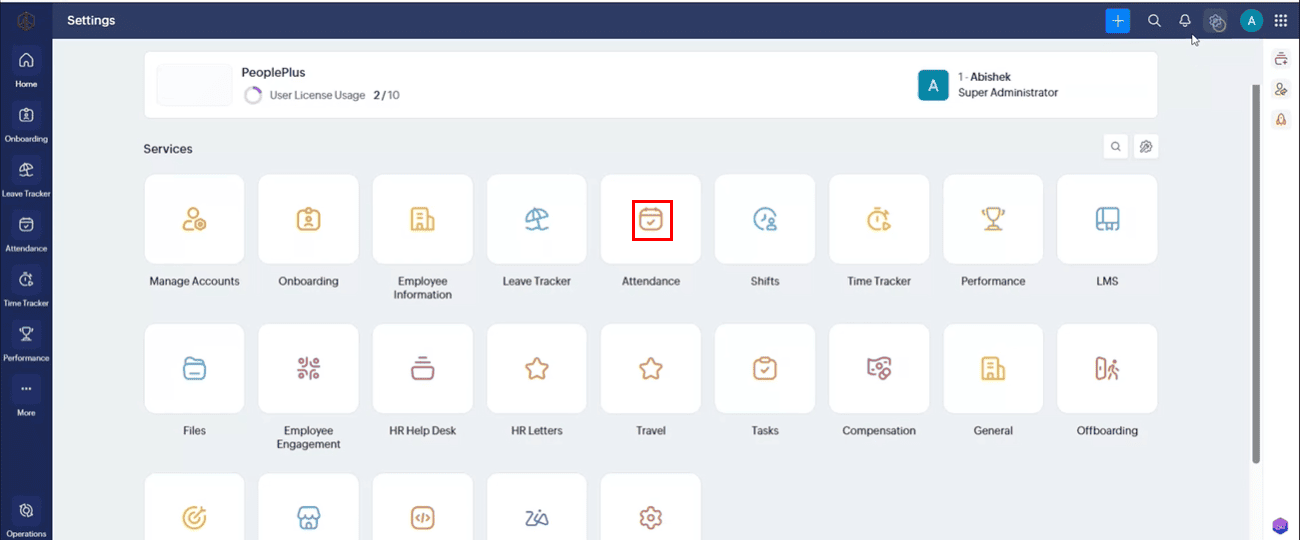
1.2 Under Services, select Attendance.
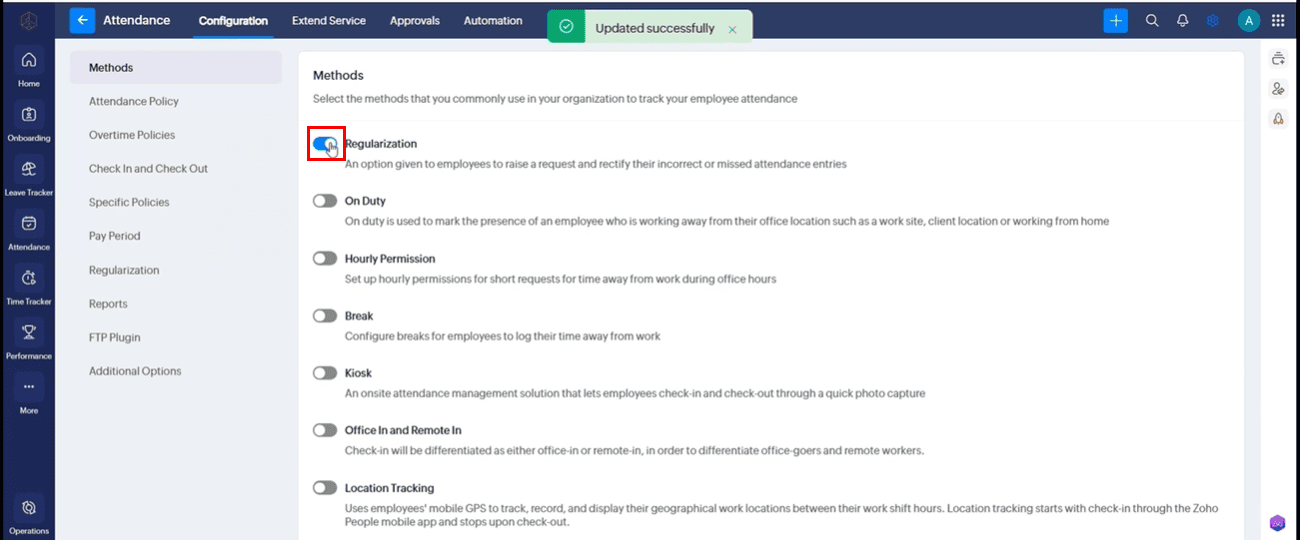
1.3 Under Configuration, select Regularization.
1.4 Under "Regularization" Choose how regularization should work: create a new check-in/check-out entry, or replace the existing first check-in/last check-out entry.
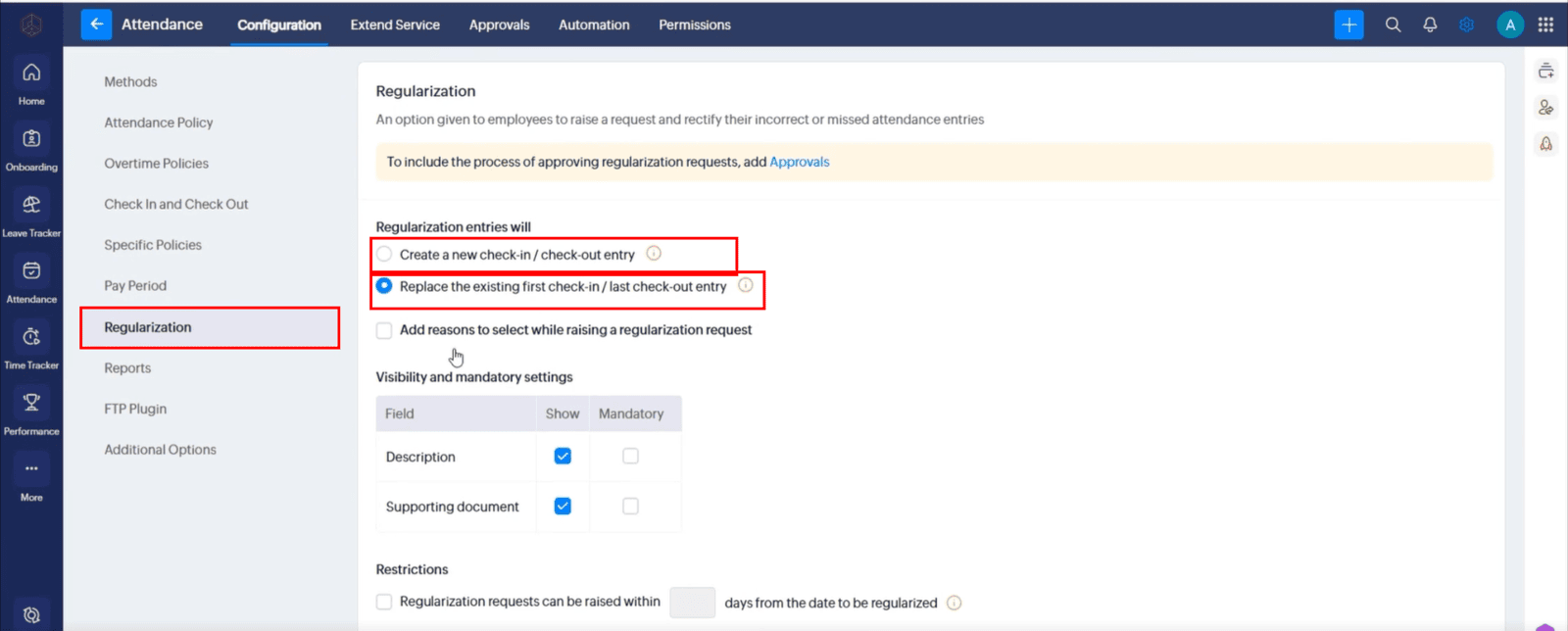
1.5 Add the reasons employees can choose, such as “Forgot to check in” or “Forgot to check out.” Make the reason required if needed.
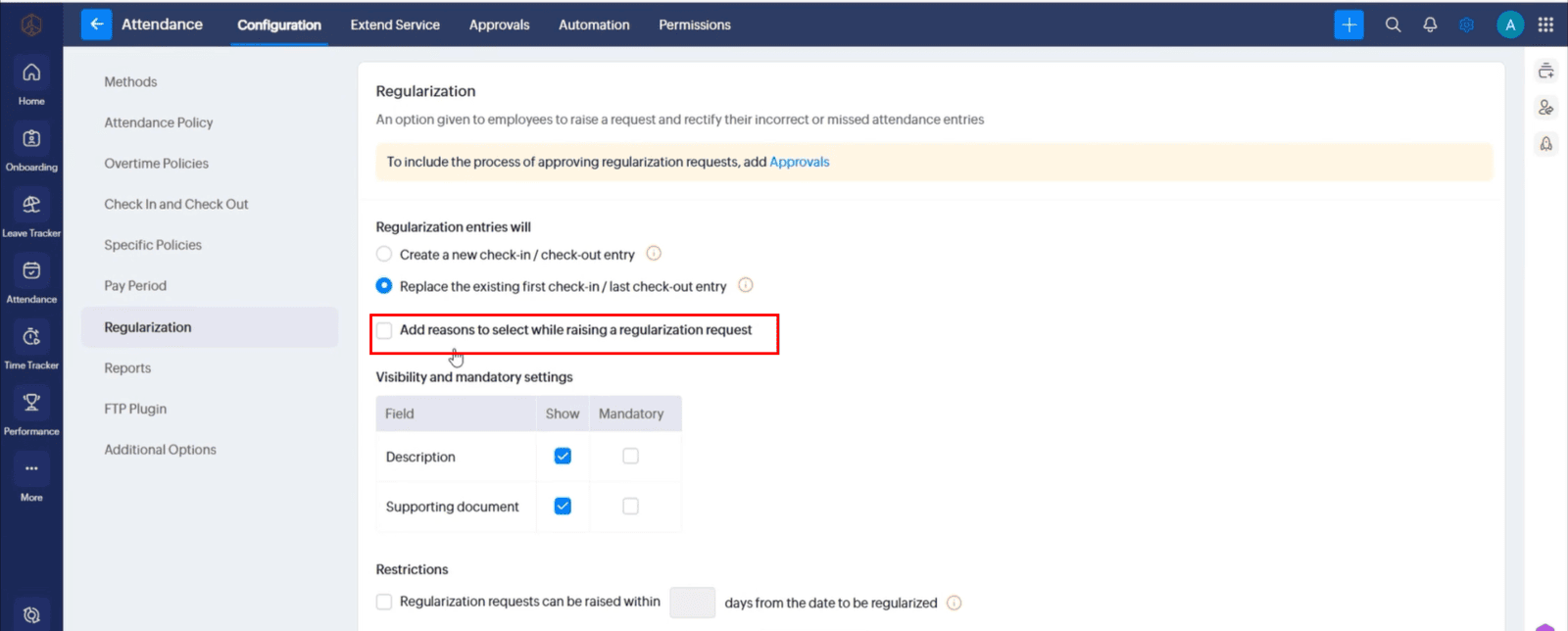
1.6 Review the fields, document requirements, and request restrictions, then save your settings.
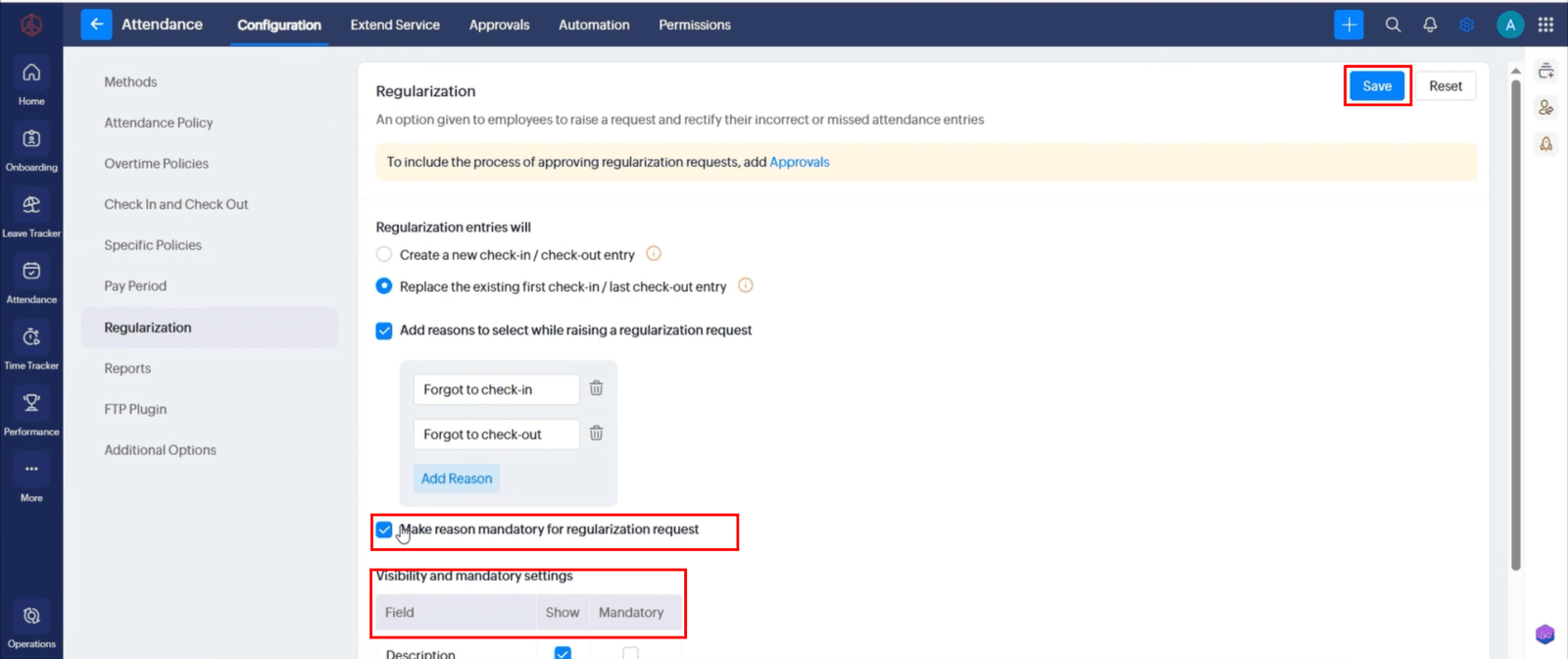
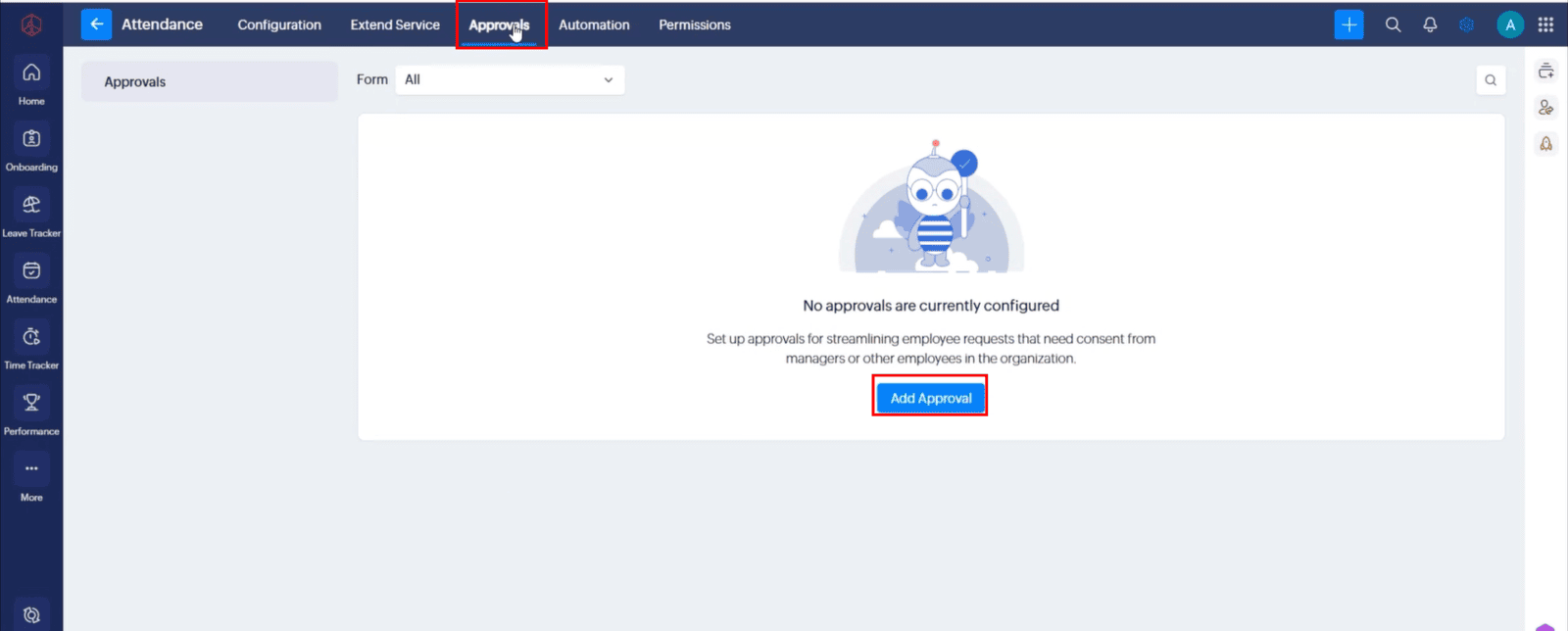
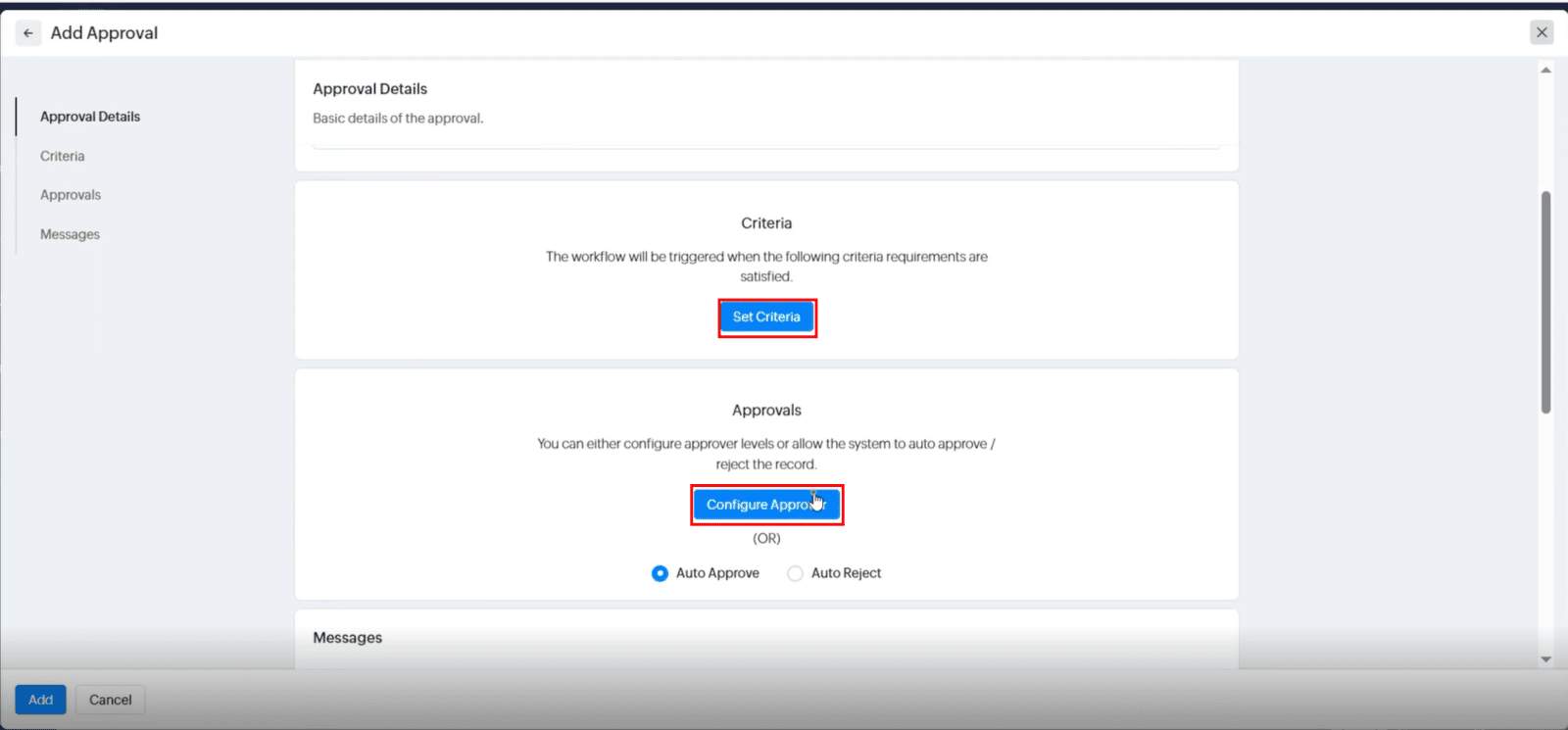
2. Set up approvals
2.1 Open Attendance > Approvals.
2.2 Enter "Approval Name" and "Description"
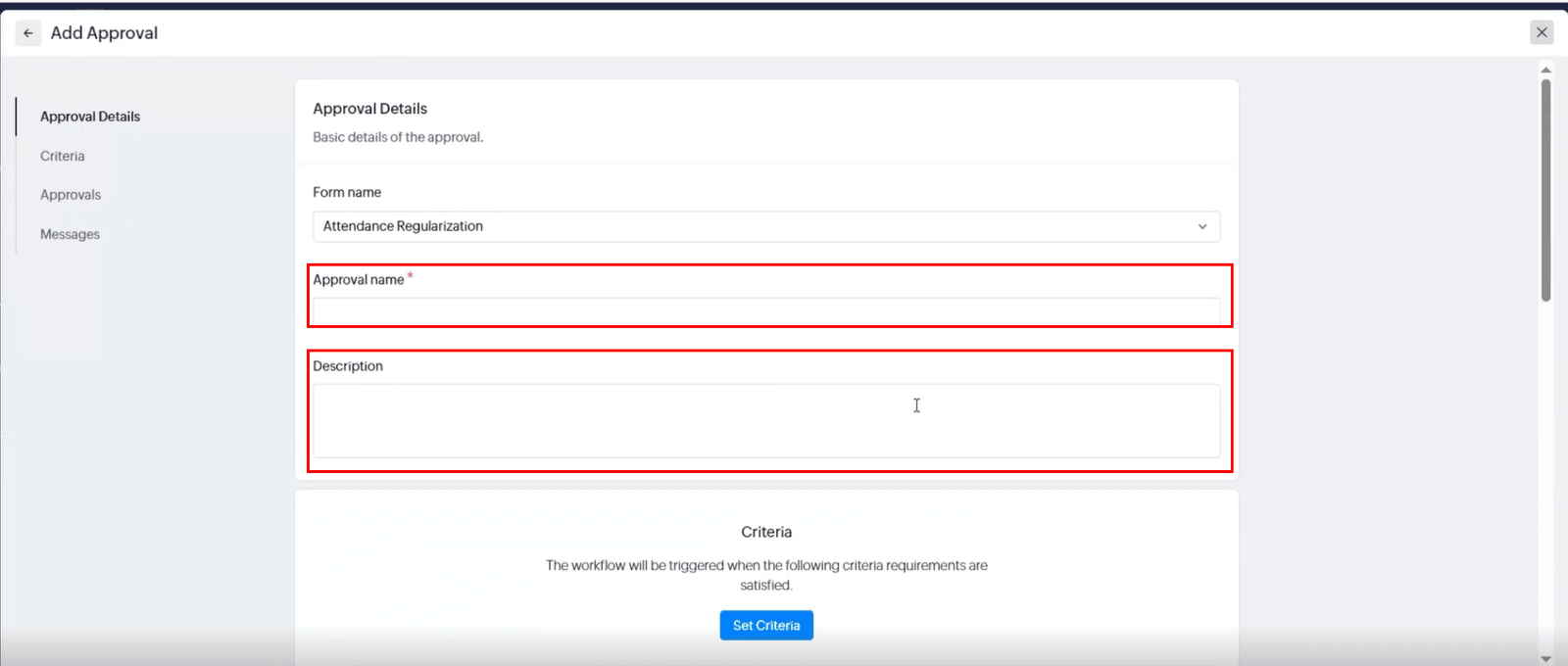
2.3 Choose who should approve requests and set the approval criteria.
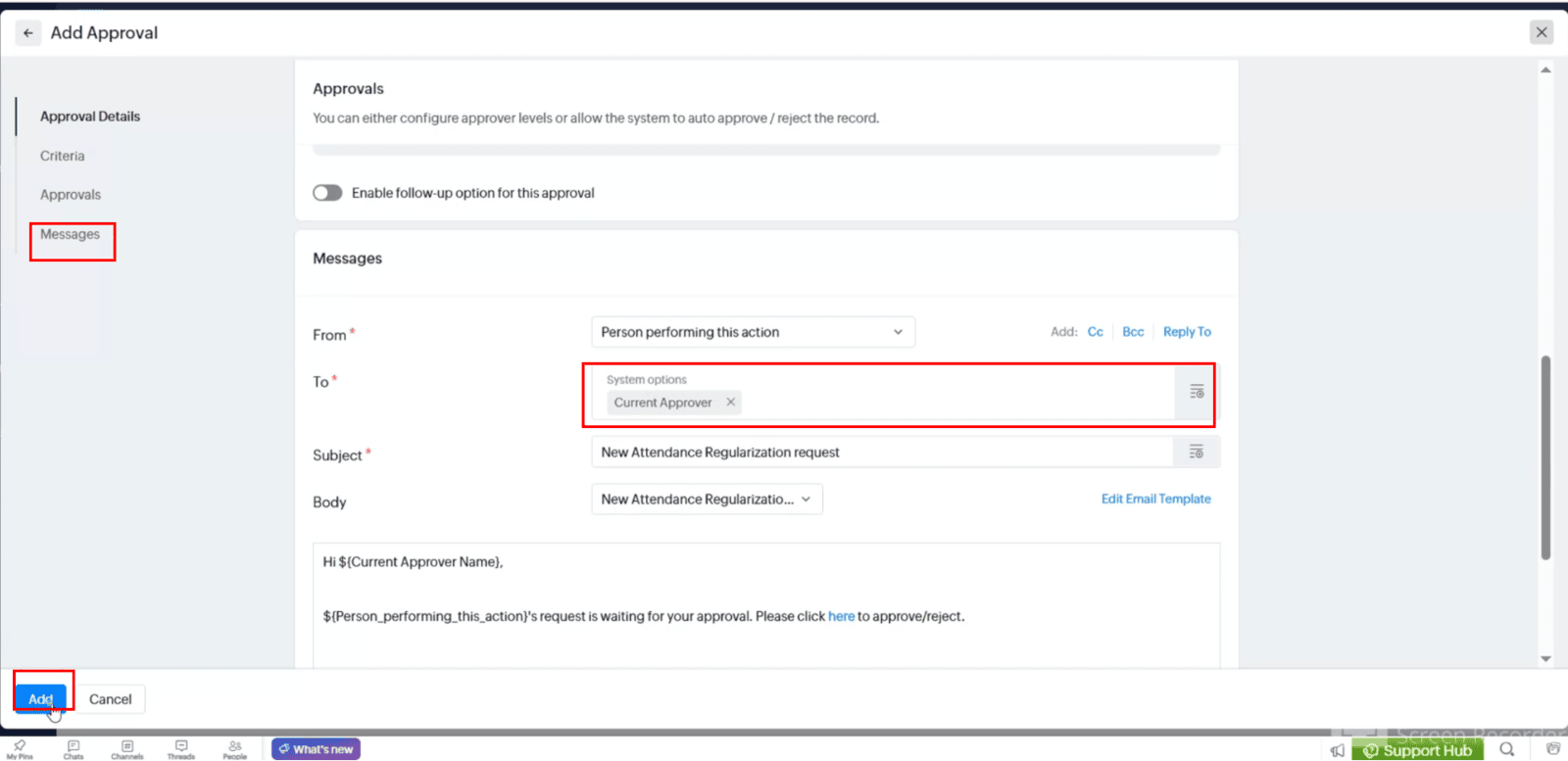
2.4 Add notifications for approvers if needed.
3. Submit a request using Zia
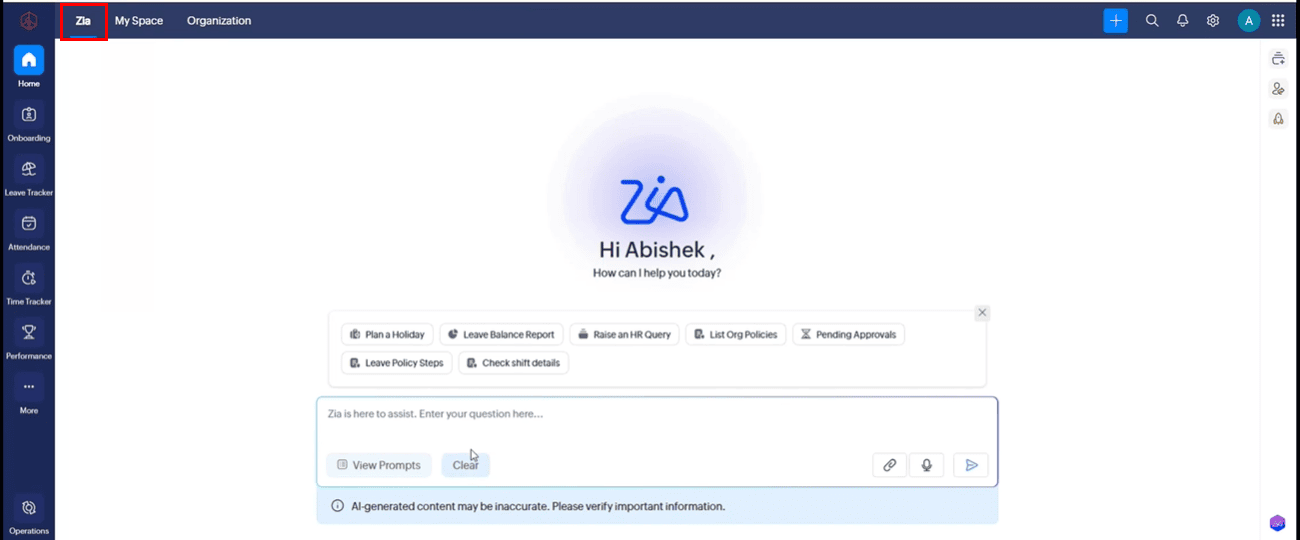
3.1 Open Zia in Zoho People.
3.2 Tell Zia the date, check-in time, check-out time, and reason for the request.
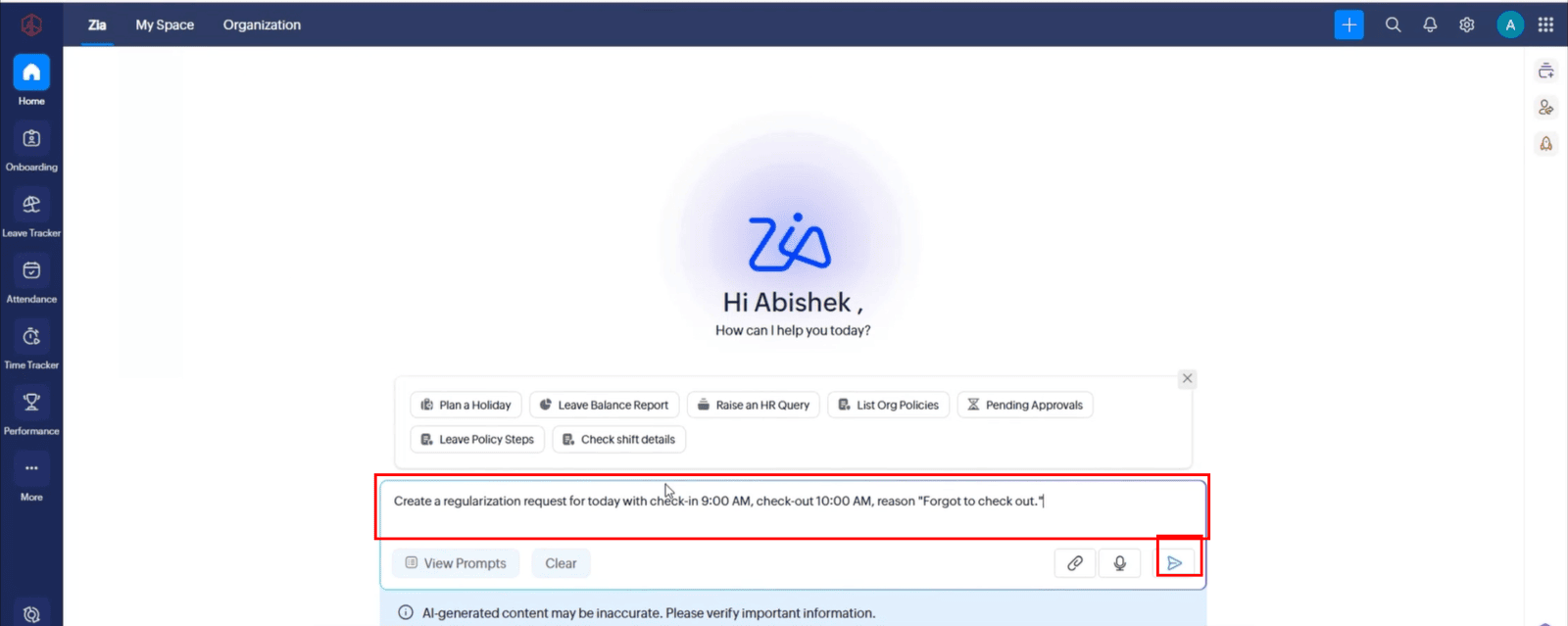
3.3 Example: “Create a regularization request for today with check-in 9:00 AM, check-out 10:00 AM, and reason ‘Forgot to check out.’”
3.4 Check the details Zia prepares. If they are correct, send the request.
3.5 To check its status, go to My Space > Activities or Approvals.
Watch the video: https://workdrive.zoho.com/file/6hy09e70a917f01844ab2becdc7c4a0fbc6f8
Before sending, check the date, times, and reason. Approval steps may differ based on your organization’s settings.


